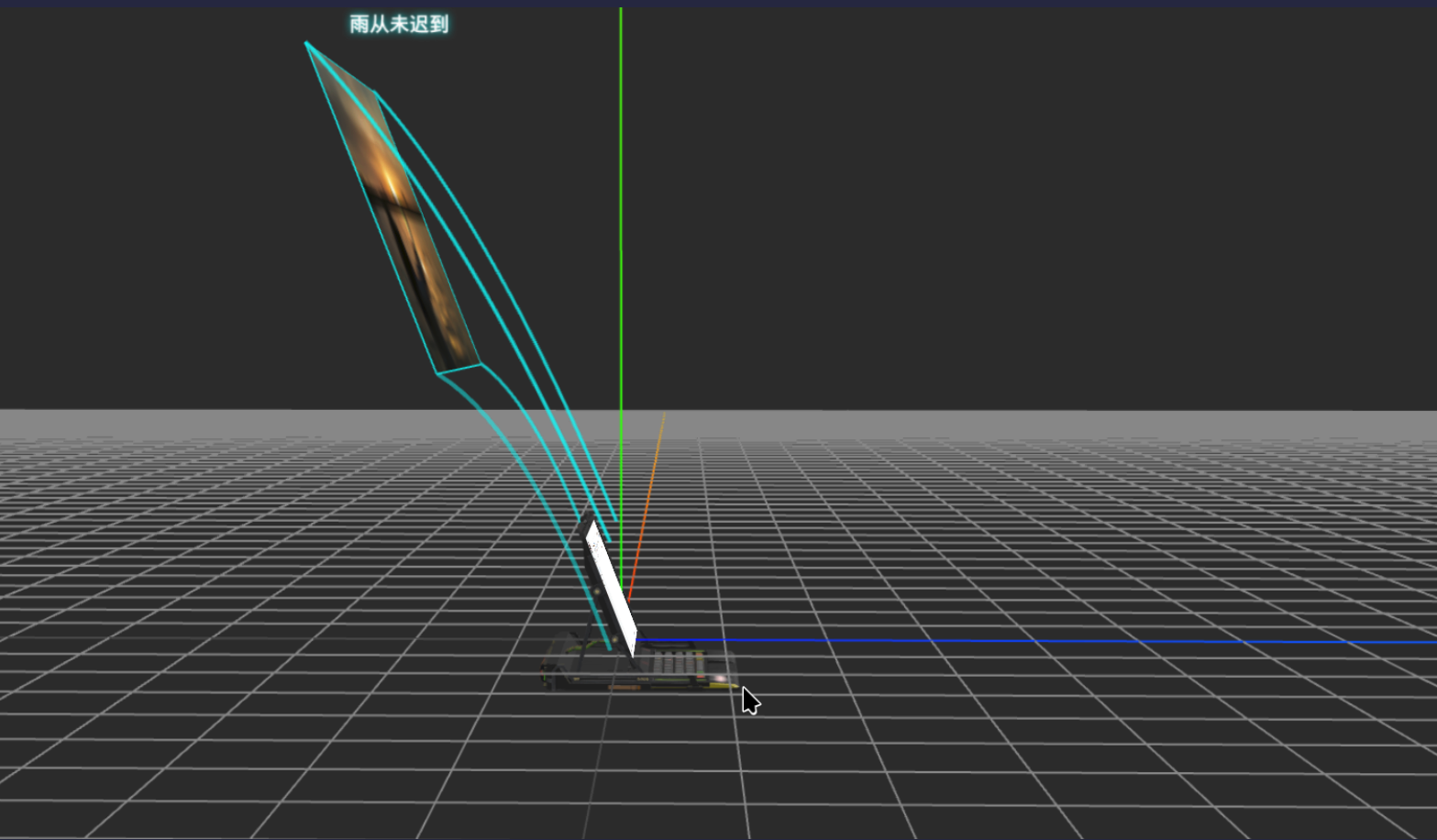
3D 可旋转电脑网页实现教程
启发来自B站Up主:ai超级个人的视频。
一、准备工作
1.1 你需要准备什么
| 物品 | 用途 | 获取方式 |
|---|---|---|
| 电脑 | 写代码 | 你的电脑 |
| 代码编辑器 | 写代码 | 下载 VS Code(免费) |
| 浏览器 | 看效果 | Chrome 或 Edge |
| 3D 电脑模型 | 显示在网页上 | Sketchfab 免费下载 |
| 模型贴图 | 给模型上色 | 和模型一起下载 |
1.2 下载 3D 模型
步骤:
- 打开网站:https://sketchfab.com
- 搜索关键词:laptop 或 notebook
- 筛选免费模型(Price → Free)
- 下载格式选择 GLB 或 GLTF
- 解压后你会得到:
- laptop.glb(模型文件)
- texture.jpg(贴图文件,可能没有)
提示:如果没有贴图,模型可能是纯色的,也能用。
搜索框搜索laptop,我选择的是Berk Gedik’sCyberPunk Laptop Concept Design
然后点击下载3D模型(Download 3D Model)——> 会弹出下载格式,我最终选择了GLB最小的一个, 因为GitHub 有 100MB 的单文件限制, 而且小的话网页加载快点。(注意:一定是要使用free的)
会得到一个名为cyberpunk_laptop_concept_design.glb文件,然后重命名为laptop.glb
二、创建项目文件夹
2.1 创建文件夹结构
在你的电脑上创建如下文件夹:
my-3d-computer/          ← 项目总文件夹
├── index.html            ← 网页入口
├── style.css             ← 样式文件
└── js/                   ← JavaScript 文件夹
    └── main.js           ← 主要代码
└── assets/               ← 资源文件夹
    ├── models/           ← 放 3D 模型
    │   └── laptop.glb
    └── textures/         ← 放贴图
        └── laptop.jpg
我使用的是VSCode的替代版VSCodium
2.2 创建基础文件
index.html(v1:复制以下内容):
1
2
3
4
5
6
7
8
9
10
11
12
13
14
15
16
17
18
19
20
21
22
23
24
25
26
27
28
29
30
31
32
33
34
35
36
37
38
39
40
41
42
43
44
45
46
47
48
49
50
51
52
53
<!DOCTYPE html>
<html lang="zh-CN">
<head>
    <meta charset="UTF-8">
    <meta name="viewport" content="width=device-width, initial-scale=1.0">
    <title>3D 可旋转电脑</title>
    <!-- 引入 Three.js -->
    <script type="importmap">
    {
        "imports": {
            "three": "https://unpkg.com/three@0.160.0/build/three.module.js",
            "three/addons/": "https://unpkg.com/three@0.160.0/examples/jsm/"
        }
    }
    </script>
    <style>
        * {
            margin: 0;
            padding: 0;
            box-sizing: border-box;
        }

        body {
            overflow: hidden;  /* 防止滚动条 */
            background: #1a1a1a;
        }

        #canvas-container {
            width: 100vw;
            height: 100vh;
            position: relative;
        }

        /* 加载提示 */
        #loading {
            position: absolute;
            top: 50%;
            left: 50%;
            transform: translate(-50%, -50%);
            color: white;
            font-size: 20px;
            font-family: Arial, sans-serif;
        }
    </style>
</head>
<body>
    <div id="canvas-container">
        <div id="loading">加载中...</div>
    </div>

    <script type="module" src="./js/main.js"></script>
</body>
</html>
三、核心代码实现
3.1 创建 main.js 文件
在 js/ 文件夹中创建 main.js(第一版v1),复制以下完整代码:
1
2
3
4
5
6
7
8
9
10
11
12
13
14
15
16
17
18
19
20
21
22
23
24
25
26
27
28
29
30
31
32
33
34
35
36
37
38
39
40
41
42
43
44
45
46
47
48
49
50
51
52
53
54
55
56
57
58
59
60
61
62
63
64
65
66
67
68
69
70
71
72
73
74
75
76
77
78
79
80
81
82
83
84
85
86
87
88
89
90
91
92
93
94
95
96
97
98
99
100
101
102
103
104
105
106
107
108
109
110
111
112
113
114
115
116
117
118
119
120
121
122
123
124
125
126
127
128
129
130
131
132
133
134
135
136
137
138
139
140
141
142
143
144
145
146
147
148
149
150
151
152
153
154
155
156
157
158
159
160
161
162
163
164
165
166
167
168
169
170
171
172
173
174
175
176
177
178
179
180
181
182
183
184
185
186
187
188
189
190
191
192
193
194
195
196
197
198
199
200
201
202
203
204
205
206
207
208
209
210
211
212
213
214
215
216
217
218
219
220
221
222
223
224
225
226
227
228
229
230
231
232
233
234
235
236
237
238
239
240
241
242
243
244
245
246
247
248
249
250
251
252
253
254
255
256
257
258
259
260
261
262
263
264
265
266
267
268
269
270
271
272
273
274
275
276
277
278
279
280
281
282
283
284
285
286
287
288
289
290
291
292
293
294
295
296
297
298
299
300
301
302
303
304
305
306
307
308
309
310
311
312
313
314
315
316
317
318
319
320
321
322
323
324
325
326
327
328
329
330
331
332
333
334
335
336
337
338
// ============================================
// 3D 可旋转电脑 - 完整代码
// ============================================

import * as THREE from 'three';
import { GLTFLoader } from 'three/addons/loaders/GLTFLoader.js';
import { OrbitControls } from 'three/addons/controls/OrbitControls.js';
import { CSS3DRenderer, CSS3DObject } from 'three/addons/renderers/CSS3DRenderer.js';

// ============================================
// 第 1 步:获取容器
// ============================================
const container = document.getElementById('canvas-container');

// ============================================
// 第 2 步:创建场景(Scene)
// ============================================
// 场景就像一个大舞台,所有东西都要放在里面
const scene = new THREE.Scene();
scene.background = new THREE.Color(0x222222);  // 深灰色背景

// CSS3D 需要单独的场景
const cssScene = new THREE.Scene();

// ============================================
// 第 3 步:创建相机(Camera)
// ============================================
// 相机就像你的眼睛,决定你能看到什么
const width = window.innerWidth;
const height = window.innerHeight;

const camera = new THREE.PerspectiveCamera(
    35,           // 视野角度(FOV)
    width / height, // 宽高比
    10,           // 近裁剪面
    100000        // 远裁剪面
);

// 初始相机位置(后面会自动调整)
camera.position.set(0, 0, 5000);

// ============================================
// 第 4 步:创建两个渲染器(重点!)
// ============================================

// 4.1 WebGL 渲染器 - 画 3D 模型(底层)
const renderer = new THREE.WebGLRenderer({
    antialias: true,    // 抗锯齿,让边缘更平滑
    alpha: true         // 支持透明
});

renderer.setSize(width, height);  // 设置大小为全屏
renderer.setPixelRatio(Math.min(window.devicePixelRatio, 2));  // 限制像素比

// 设置样式:绝对定位,放在底层
renderer.domElement.style.position = 'absolute';
renderer.domElement.style.top = '0';
renderer.domElement.style.left = '0';
renderer.domElement.style.zIndex = '1';

container.appendChild(renderer.domElement);

// 4.2 CSS3D 渲染器 - 画网页(顶层)
const cssRenderer = new CSS3DRenderer();

cssRenderer.setSize(width, height);

// 设置样式:绝对定位,放在上层
cssRenderer.domElement.style.position = 'absolute';
cssRenderer.domElement.style.top = '0';
cssRenderer.domElement.style.left = '0';
cssRenderer.domElement.style.zIndex = '2';

container.appendChild(cssRenderer.domElement);

// ============================================
// 第 5 步:创建轨道控制器(OrbitControls)
// ============================================
// 这让你可以用鼠标旋转、缩放、平移

const controls = new OrbitControls(camera, cssRenderer.domElement);
controls.enableDamping = true;      // 开启阻尼(惯性效果)
controls.dampingFactor = 0.05;      // 阻尼系数

// ============================================
// 第 6 步:加载 3D 模型
// ============================================

const loader = new GLTFLoader();

// 模型路径(根据你的实际路径修改)
const modelPath = './assets/models/laptop.glb';

loader.load(
    modelPath,
    function (gltf) {
        // 加载成功后的回调
        const model = gltf.scene;

        // 6.1 计算模型大小,自动调整相机
        autoFitCamera(model);

        // 6.2 添加模型到场景
        scene.add(model);

        // 6.3 创建电脑屏幕上的网页
        createScreen();

        // 6.4 隐藏加载提示
        document.getElementById('loading').style.display = 'none';
    },
    function (progress) {
        // 加载进度(可选)
        console.log('加载进度:', (progress.loaded / progress.total * 100) + '%');
    },
    function (error) {
        // 加载失败
        console.error('模型加载失败:', error);
        alert('模型加载失败,请检查路径是否正确');
    }
);

// ============================================
// 第 7 步:自动对焦函数
// ============================================

function autoFitCamera(object) {
    // 创建一个包围盒,计算模型的大小
    const box = new THREE.Box3().setFromObject(object);

    // 获取模型的尺寸
    const size = new THREE.Vector3();
    box.getSize(size);

    // 获取模型的中心点
    const center = new THREE.Vector3();
    box.getCenter(center);

    console.log('模型尺寸:', size);
    console.log('模型中心:', center);

    // 计算相机应该放多远
    const maxDim = Math.max(size.x, size.y, size.z);
    const fov = camera.fov * (Math.PI / 180);
    const cameraDistance = Math.abs(maxDim / 2 / Math.tan(fov / 2)) * 1.5;

    // 设置相机位置
    camera.position.set(
        center.x + maxDim * 0.2,
        center.y + maxDim * 0.3,
        center.z + cameraDistance
    );

    // 让相机看向模型中心
    controls.target.copy(center);
    controls.update();

    console.log('相机位置:', camera.position);
}

// ============================================
// 第 8 步:创建电脑屏幕(核心!)
// ============================================

function createScreen() {
    // 8.1 创建 iframe 元素
    const iframe = document.createElement('iframe');

    // 设置要显示的网页(改成你的博客地址)
    iframe.src = 'https://www.example.com';

    // 设置 iframe 大小(逻辑分辨率)
    iframe.style.width = '1480px';
    iframe.style.height = '1100px';

    // 样式设置
    iframe.style.border = 'none';
    iframe.style.backgroundColor = 'white';

    // 防止穿模:背面不可见
    iframe.style.backfaceVisibility = 'hidden';

    // ========================================
    // 8.2 将 iframe 转为 3D 对象
    // ========================================
    const screenObject = new CSS3DObject(iframe);

    // ========================================
    // 8.3 调整位置和旋转(需要手动调试!)
    // ========================================

    // 位置(x, y, z)- 根据你的模型调整
    screenObject.position.set(0, 100, 0);

    // 旋转(x, y, z)- 单位是弧度
    // -Math.PI / 2 表示 90度
    screenObject.rotation.x = -0.2;

    // 缩放(如果网页太大或太小)
    screenObject.scale.set(0.5, 0.5, 0.5);

    // 添加到 CSS3D 场景
    cssScene.add(screenObject);

    console.log('屏幕已创建');

    // ========================================
    // 8.4 添加调试功能(按键盘调整位置)
    // ========================================
    setupDebugControls(screenObject);
}

// ============================================
// 第 9 步:键盘调试功能
// ============================================

function setupDebugControls(screenObject) {
    console.log('=== 调试模式已开启 ===');
    console.log('按键说明:');
    console.log('方向键 ↑↓←→ : 移动屏幕位置');
    console.log('W/S : 前后移动');
    console.log('Q/E : 旋转 X 轴');
    console.log('A/D : 旋转 Y 轴');
    console.log('Z/X : 旋转 Z 轴');
    console.log('+/- : 缩放');
    console.log('P : 打印当前坐标');

    const step = 10;        // 移动步长
    const rotStep = 0.05;   // 旋转步长

    window.addEventListener('keydown', (e) => {
        switch(e.key) {
            // 位置移动
            case 'ArrowUp':
                screenObject.position.y += step;
                break;
            case 'ArrowDown':
                screenObject.position.y -= step;
                break;
            case 'ArrowLeft':
                screenObject.position.x -= step;
                break;
            case 'ArrowRight':
                screenObject.position.x += step;
                break;
            case 'w':
            case 'W':
                screenObject.position.z -= step;
                break;
            case 's':
            case 'S':
                screenObject.position.z += step;
                break;

            // 旋转
            case 'q':
            case 'Q':
                screenObject.rotation.x += rotStep;
                break;
            case 'e':
            case 'E':
                screenObject.rotation.x -= rotStep;
                break;
            case 'a':
            case 'A':
                screenObject.rotation.y += rotStep;
                break;
            case 'd':
            case 'D':
                screenObject.rotation.y -= rotStep;
                break;
            case 'z':
            case 'Z':
                screenObject.rotation.z += rotStep;
                break;
            case 'x':
            case 'X':
                screenObject.rotation.z -= rotStep;
                break;

            // 缩放
            case '+':
            case '=':
                screenObject.scale.multiplyScalar(1.1);
                break;
            case '-':
                screenObject.scale.multiplyScalar(0.9);
                break;

            // 打印坐标
            case 'p':
            case 'P':
                console.log('========== 当前坐标 ==========');
                console.log(`position.set(${screenObject.position.x.toFixed(2)}, ${screenObject.position.y.toFixed(2)}, ${screenObject.position.z.toFixed(2)})`);
                console.log(`rotation.set(${screenObject.rotation.x.toFixed(2)}, ${screenObject.rotation.y.toFixed(2)}, ${screenObject.rotation.z.toFixed(2)})`);
                console.log(`scale.set(${screenObject.scale.x.toFixed(2)}, ${screenObject.scale.y.toFixed(2)}, ${screenObject.scale.z.toFixed(2)})`);
                console.log('==============================');
                break;
        }
    });
}

// ============================================
// 第 10 步:渲染循环
// ============================================

function animate() {
    requestAnimationFrame(animate);

    // 更新控制器
    controls.update();

    // 同时渲染两个场景
    renderer.render(scene, camera);      // 3D 模型
    cssRenderer.render(cssScene, camera); // 网页
}

// 启动渲染
animate();

// ============================================
// 第 11 步:响应窗口大小变化
// ============================================

window.addEventListener('resize', () => {
    const newWidth = window.innerWidth;
    const newHeight = window.innerHeight;

    // 更新相机
    camera.aspect = newWidth / newHeight;
    camera.updateProjectionMatrix();

    // 更新两个渲染器
    renderer.setSize(newWidth, newHeight);
    cssRenderer.setSize(newWidth, newHeight);
});

console.log('3D 电脑初始化完成');
注意:将8.1部分
iframe.src = 'https://www.example.com';里面修改成自己的博客地址,比如我的博客地址https://rockosdev.github.io/
四、运行项目
4.1 本地运行方式
方式一:使用 VS Code 插件(推荐小白) 安装 VS Code 安装插件:Live Server 右键点击 index.html → Open with Live Server 浏览器会自动打开
方式二:使用 Python 临时服务器
1
2
3
4
5
6
7
# 打开终端,进入项目文件夹
cd my-3d-computer

# Python 3
python -m http.server 8000

# 然后浏览器访问 http://localhost:8000
4.2 你应该看到什么
| 阶段 | 现象 |
|---|---|
| 加载中 | 黑屏,显示”加载中…” |
| 加载完成 | 出现 3D 电脑模型 |
| 鼠标操作 | 可以旋转、缩放、平移 |
| 屏幕位置 | 可能不对,需要调试 |
五、调试屏幕位置(关键步骤!)
5.1 调试方法
因为每个 3D 模型的屏幕位置和大小都不一样,你需要手动调整。 操作步骤:
- 打开浏览器控制台(按 F12)
- 查看按键说明(控制台会打印)
- 使用键盘调整:
| 按键 | 功能 |
|---|---|
| ↑ ↓ ← → | 上下左右移动屏幕 |
| W / S | 前后移动 |
| Q / E | 绕 X 轴旋转 |
| A / D | 绕 Y 轴旋转 |
| Z / X | 绕 Z 轴旋转 |
| + / - | 放大 / 缩小 |
| P | 打印当前坐标 |
5.2 调试流程
第 1 步:看屏幕是否在电脑附近
    ↓ 不在?用方向键和 W/S 移动
    ↓
第 2 步:看屏幕角度是否贴合
    ↓ 不贴合?用 Q/E/A/D/Z/X 旋转
    ↓
第 3 步:看屏幕大小是否合适
    ↓ 不合适?用 +/- 缩放
    ↓
第 4 步:按 P 打印坐标
    ↓
第 5 步:修改代码中的坐标值
    ↓
第 6 步:刷新页面看效果
5.3 修改固定坐标
当你找到合适的坐标后,修改 createScreen 函数中的:
1
2
3
4
5
6
7
8
9
10
11
// 修改前(初始值)
screenObject.position.set(0, 100, 0);
screenObject.rotation.x = -0.2;
screenObject.scale.set(0.5, 0.5, 0.5);

// 修改后(你调试好的值,示例)
screenObject.position.set(900, 458, 765);
screenObject.rotation.x = -1.0;
screenObject.rotation.y = 0;
screenObject.rotation.z = 0;
screenObject.scale.set(1, 1, 1);
六、常见问题解决
6.1 黑屏/看不到模型
原因:相机在模型内部或模型太大/太小 解决:
- 检查 modelPath 路径是否正确
- 打开 F12 控制台看错误信息
- 确保 autoFitCamera 函数被调用
6.2 网页显示在模型后面(无法点击)
原因:层级不对或控制器绑定错误 解决:
- 确保 cssRenderer.domElement.style.zIndex = ‘2’
- 确保 renderer.domElement.style.zIndex = ‘1’
- 确保 OrbitControls 绑定到 cssRenderer.domElement
6.3 屏幕位置调不准
原因:需要耐心调试 解决:
- 使用小步长(把 step 改成 1)
- 先调位置,再调旋转,最后调缩放
- 一次只调一个轴
6.4 模型加载慢
原因:模型文件太大 解决:
- 使用 Blender 简化模型面数
- 压缩贴图图片
- 添加加载进度条
七、进阶优化(可选)
7.1 添加加载动画
在 index.html 的 #loading 中添加:
1
2
3
4
<div id="loading">
    <div>加载中...</div>
    <div id="progress">0%</div>
</div>
7.2 添加光影效果
在 main.js 中添加:
1
2
3
4
5
6
7
8
// 环境光
const ambientLight = new THREE.AmbientLight(0xffffff, 0.5);
scene.add(ambientLight);

// 方向光
const directionalLight = new THREE.DirectionalLight(0xffffff, 1);
directionalLight.position.set(10, 10, 10);
scene.add(directionalLight);
7.3 添加辅助线
在 main.js 中添加:
1
2
3
4
5
6
7
// 网格辅助线
const gridHelper = new THREE.GridHelper(10000, 100);
scene.add(gridHelper);

// 坐标轴辅助线
const axesHelper = new THREE.AxesHelper(5000);
scene.add(axesHelper);
7.4 强制材质并保留贴图(145MB 大模型需要)
在 main.js 的 第 6 步 loader.load 成功回调 中添加:
1
2
3
4
5
6
7
8
9
10
11
12
13
14
15
16
17
18
19
20
21
22
23
24
25
// 遍历模型,强制使用标准材质并保留贴图
model.traverse((child) => {
    if (child.isMesh) {
        const oldMaterial = child.material;

        // 创建新标准材质
        const newMaterial = new THREE.MeshStandardMaterial({
            color: 0xffffff,
            roughness: 0.5,
            metalness: 0.1,
        });

        // 如果有贴图,复制过来
        if (oldMaterial && oldMaterial.map) {
            newMaterial.map = oldMaterial.map;
            newMaterial.map.flipY = false;
            newMaterial.map.colorSpace = THREE.SRGBColorSpace;
            console.log('贴图已复制:', child.name);
        } else {
            console.log('无贴图:', child.name);
        }

        child.material = newMaterial;
    }
});
7.5 优化加载进度显示(显示 MB)
在 main.js 的 第 6 步 progress 回调 中替换:
1
2
3
4
5
6
7
8
9
10
const percent = (progress.loaded / progress.total * 100).toFixed(1);
const mb = (progress.loaded / 1024 / 1024).toFixed(1);
const totalMb = (progress.total / 1024 / 1024).toFixed(1);

console.log(`加载中: ${percent}% (${mb}MB / ${totalMb}MB)`);

const loading = document.getElementById('loading');
if (loading) {
    loading.innerHTML = `加载模型中...<br>${percent}%<br>(${mb}MB / ${totalMb}MB)<br>145MB 较大,请耐心等待`;
}
7.6 修正背面剔除位置(防止穿模)
在 main.js 的 第 8 步 中: 删除原来错误的:
1
2
// 删除这行!
// iframe.style.backfaceVisibility = 'hidden';
在正确位置添加:
1
2
// 在 screenObject.scale.set() 之后,cssScene.add() 之前添加
screenObject.element.style.backfaceVisibility = 'hidden';
7.7 增强灯光(解决模型发黑)
在 main.js 的 第 4 步后,第 5 步前 添加(替换或补充 7.2):
1
2
3
4
5
6
7
8
9
10
11
12
13
14
15
16
17
18
// 环境光(提高亮度)
const ambientLight = new THREE.AmbientLight(0xffffff, 0.8);
scene.add(ambientLight);

// 主光源
const dirLight = new THREE.DirectionalLight(0xffffff, 1.5);
dirLight.position.set(10, 20, 10);
scene.add(dirLight);

// 补光
const fillLight = new THREE.DirectionalLight(0xffffff, 0.5);
fillLight.position.set(-10, 10, -10);
scene.add(fillLight);

// 底部反光
const bottomLight = new THREE.DirectionalLight(0xffffff, 0.3);
bottomLight.position.set(0, -10, 0);
scene.add(bottomLight);
第二版index.html(v2) 和 main.js(v2)添加内容:
| 编号 | 位置 | 添加内容 | 标记 |
|---|---|---|---|
| 7.1 | index.html 的 #loading | 加载动画 + 进度百分比 | ⭐ 新增 |
| 7.2 | 第 5 步后 | 环境光 + 方向光 | ⭐ 新增 |
| 7.3 | 第 5 步后 | 网格辅助线 + 坐标轴辅助线 | ⭐ 新增 |
| 7.4 | 第 4 步后 | 灯光(环境光+方向光+补光+反光) | ⭐ 新增 |
| 7.5 | 第 6 步 loader 成功回调 | 强制材质遍历 | ⭐ 新增 |
| 7.6 | 第 6 步 progress 回调 | MB 进度显示 | ⭐ 新增 |
| 7.7 | 第 8 步 | 删除错误的 iframe.style.backfaceVisibility,添加正确的 screenObject.element.style.backfaceVisibility | ⭐ 删除 + 新增 |
index.html(v3: v2保持不变)
1
2
3
4
5
6
7
8
9
10
11
12
13
14
15
16
17
18
19
20
21
22
23
24
25
26
27
28
29
30
31
32
33
34
35
36
37
38
39
40
41
42
43
44
45
46
47
48
49
50
51
52
53
54
55
56
57
58
59
60
61
62
63
64
65
<!DOCTYPE html>
<html lang="zh-CN">
<head>
    <meta charset="UTF-8">
    <meta name="viewport" content="width=device-width, initial-scale=1.0">
    <title>3D 可旋转电脑</title>
    <!-- 引入 Three.js -->
    <script type="importmap">
    {
        "imports": {
            "three": "https://unpkg.com/three@0.160.0/build/three.module.js",
            "three/addons/": "https://unpkg.com/three@0.160.0/examples/jsm/"
        }
    }
    </script>
    <style>
        * {
            margin: 0;
            padding: 0;
            box-sizing: border-box;
        }

        body {
            overflow: hidden;
            background: #1a1a1a;
        }

        #canvas-container {
            width: 100vw;
            height: 100vh;
            position: relative;
        }

        /* 7.1 加载动画样式 */
        #loading {
            position: absolute;
            top: 50%;
            left: 50%;
            transform: translate(-50%, -50%);
            color: white;
            font-size: 20px;
            font-family: Arial, sans-serif;
            text-align: center;
            z-index: 10;
        }

        #progress {
            margin-top: 10px;
            font-size: 16px;
            color: #aaa;
        }
    </style>
</head>
<body>
    <div id="canvas-container">
        <!-- 7.1 添加加载动画 -->
        <div id="loading">
            <div>加载中...</div>
            <div id="progress">0%</div>
        </div>
    </div>

    <script type="module" src="./js/main.js"></script>
</body>
</html>
main.js (v3: v2基础上新增添了内容)
1
2
3
4
5
6
7
8
9
10
11
12
13
14
15
16
17
18
19
20
21
22
23
24
25
26
27
28
29
30
31
32
33
34
35
36
37
38
39
40
41
42
43
44
45
46
47
48
49
50
51
52
53
54
55
56
57
58
59
60
61
62
63
64
65
66
67
68
69
70
71
72
73
74
75
76
77
78
79
80
81
82
83
84
85
86
87
88
89
90
91
92
93
94
95
96
97
98
99
100
101
102
103
104
105
106
107
108
109
110
111
112
113
114
115
116
117
118
119
120
121
122
123
124
125
126
127
128
129
130
131
132
133
134
135
136
137
138
139
140
141
142
143
144
145
146
147
148
149
150
151
152
153
154
155
156
157
158
159
160
161
162
163
164
165
166
167
168
169
170
171
172
173
174
175
176
177
178
179
180
181
182
183
184
185
186
187
188
189
190
191
192
193
194
195
196
197
198
199
200
201
202
203
204
205
206
207
208
209
210
211
212
213
214
215
216
217
218
219
220
221
222
223
224
225
226
227
228
229
230
231
232
233
234
235
236
237
238
239
240
241
242
243
244
245
246
247
248
249
250
251
252
253
254
255
256
257
258
259
260
261
262
263
264
265
266
267
268
269
270
271
272
273
274
275
276
277
278
279
280
281
282
283
284
285
286
287
288
289
290
291
292
293
294
295
296
297
298
299
300
301
302
303
304
305
306
307
308
309
310
311
312
313
314
315
316
317
318
319
320
321
322
323
324
325
326
327
328
329
330
331
332
333
334
335
336
337
338
339
340
341
342
343
344
345
346
347
348
349
350
351
352
353
354
355
356
357
358
359
360
361
362
363
364
365
366
367
368
369
370
371
372
373
374
375
376
377
378
379
380
381
382
383
384
385
386
387
388
389
390
391
392
393
394
395
396
397
398
399
400
401
402
403
404
405
406
407
408
409
410
411
412
413
414
415
416
417
418
419
420
421
422
423
424
425
426
427
428
429
430
431
432
433
434
435
436
437
438
439
440
441
442
443
444
445
446
447
448
449
450
451
452
453
454
455
456
457
458
459
460
461
462
463
464
465
466
467
468
469
470
471
472
473
474
475
476
477
478
479
480
481
482
483
484
485
486
487
488
489
490
491
492
493
494
495
496
497
498
499
500
501
502
503
504
505
506
507
508
509
510
511
512
513
514
515
516
517
518
519
520
521
522
523
524
525
526
527
528
529
530
531
532
533
534
535
536
537
538
539
540
541
542
543
544
545
546
547
548
549
550
551
552
553
554
555
556
557
558
559
560
561
562
563
564
565
566
567
568
569
570
571
572
573
574
575
576
577
578
579
580
581
582
583
584
585
586
587
588
589
590
591
592
593
594
595
596
597
598
599
600
601
602
603
604
605
606
607
608
609
610
611
612
613
614
615
616
617
618
619
620
621
622
623
624
625
626
627
628
629
630
631
632
633
634
635
636
637
638
639
640
641
642
643
644
645
646
647
648
649
650
651
652
653
654
655
656
657
658
659
660
661
662
663
664
665
666
667
668
669
670
671
672
673
674
675
676
677
678
679
680
681
682
683
684
685
686
687
688
689
690
691
692
693
694
695
696
697
698
699
700
701
702
703
704
705
706
707
708
709
710
711
712
713
714
715
716
717
718
719
720
721
722
723
724
725
726
727
728
729
730
731
732
733
734
735
736
737
738
739
740
741
742
743
744
745
746
747
748
749
750
751
752
753
754
755
756
757
758
759
760
761
762
763
764
765
766
767
768
769
770
771
772
773
774
775
776
777
778
779
780
781
782
783
784
785
786
787
788
789
790
791
792
793
794
795
796
797
798
799
800
801
802
803
804
805
806
807
808
809
810
811
812
813
814
815
816
817
818
819
820
821
```js
// ============================================
// 3D 可旋转电脑 - 完整代码(R键触发+前上方60度+音效+文字提示: 按下U恢复电脑居中位置)
// ============================================

import * as THREE from 'three';
import { GLTFLoader } from 'three/addons/loaders/GLTFLoader.js';
import { OrbitControls } from 'three/addons/controls/OrbitControls.js';
import { CSS3DRenderer, CSS3DObject } from 'three/addons/renderers/CSS3DRenderer.js';

// ============================================
// 全局状态管理(新增)
// ============================================
const state = {
    isPanelVisible: false,
    isAnimating: false,
    panelTargetOpacity: 0,
    panelCurrentOpacity: 0,
    panelTargetScale: 0.1,
    panelCurrentScale: 0.1
};

// 存储需要动画的对象(新增)
let backPanel = null;
let backPanelMaterial = null;
let connectionLines = [];
let panelLight = null;
let rainTextSprite = null;  // "雨从未迟到"文字精灵

// 与电脑屏幕面保持一致的旋转(用于让贴图“与电脑面平行”)
// 注:createScreen 里屏幕 iframe 也使用同一角度
// ============================================
// 第 1 步:获取容器
// ============================================
const container = document.getElementById('canvas-container');

// ============================================
// 第 2 步:创建场景(Scene)
// ============================================
const scene = new THREE.Scene();
scene.background = new THREE.Color(0x222222);

const cssScene = new THREE.Scene();

// ============================================
// 第 3 步:创建相机(Camera)
// ============================================
const width = window.innerWidth;
const height = window.innerHeight;

const camera = new THREE.PerspectiveCamera(
    35,
    width / height,
    10,
    100000
);
camera.position.set(0, 0, 5000);

// ============================================
// 第 4 步:创建两个渲染器
// ============================================

// 4.1 WebGL 渲染器
const renderer = new THREE.WebGLRenderer({
    antialias: true,
    alpha: true
});
renderer.setSize(width, height);
renderer.setPixelRatio(Math.min(window.devicePixelRatio, 2));
renderer.domElement.style.position = 'absolute';
renderer.domElement.style.top = '0';
renderer.domElement.style.left = '0';
renderer.domElement.style.zIndex = '1';
container.appendChild(renderer.domElement);

// 4.2 CSS3D 渲染器
const cssRenderer = new CSS3DRenderer();
cssRenderer.setSize(width, height);
cssRenderer.domElement.style.position = 'absolute';
cssRenderer.domElement.style.top = '0';
cssRenderer.domElement.style.left = '0';
cssRenderer.domElement.style.zIndex = '2';
container.appendChild(cssRenderer.domElement);

// ============================================
// 第 4.5 步:添加灯光
// ============================================
const ambientLight = new THREE.AmbientLight(0xffffff, 0.8);
scene.add(ambientLight);

const dirLight = new THREE.DirectionalLight(0xffffff, 1.5);
dirLight.position.set(10, 20, 10);
scene.add(dirLight);

const fillLight = new THREE.DirectionalLight(0xffffff, 0.5);
fillLight.position.set(-10, 10, -10);
scene.add(fillLight);

const bottomLight = new THREE.DirectionalLight(0xffffff, 0.3);
bottomLight.position.set(0, -10, 0);
scene.add(bottomLight);

// ============================================
// 第 5 步:创建轨道控制器
// ============================================
const controls = new OrbitControls(camera, cssRenderer.domElement);
controls.enableDamping = true;
controls.dampingFactor = 0.05;

// ============================================
// 第 6 步:加载 3D 模型
// ============================================
const loader = new GLTFLoader();
const modelPath = './assets/models/laptop.glb';

// 存储电脑屏幕的四个角位置(用于连线)
let laptopScreenCorners = null;
let laptopFrontUpperPosition = null;  // 修改为前上方位置

loader.load(
    modelPath,
    function (gltf) {
        const model = gltf.scene;

        // 修复材质
        model.traverse((child) => {
            if (child.isMesh) {
                const oldMaterial = child.material;
                const newMaterial = new THREE.MeshStandardMaterial({
                    color: 0xffffff,
                    roughness: 0.5,
                    metalness: 0.1,
                });

                if (oldMaterial && oldMaterial.map) {
                    newMaterial.map = oldMaterial.map;
                    newMaterial.map.flipY = false;
                    newMaterial.map.colorSpace = THREE.SRGBColorSpace;
                }

                child.material = newMaterial;
            }
        });

        autoFitCamera(model);
        scene.add(model);

        // ========================================
        // 新增:计算电脑屏幕四角位置和前上方位置
        // ========================================
        calculateLaptopGeometry(model);

        // 创建前上方信息板(初始隐藏)
        createFrontUpperPanel();

        // 创建连接线(初始隐藏)
        createConnectionLines();

        // 创建"雨从未迟到"文字
        createRainText();

        // 创建屏幕网页
        createScreen();

        // ========================================
        // 新增:设置R键监听
        // ========================================
        setupRKeyListener();

        document.getElementById('loading').style.display = 'none';
    },
    function (progress) {
        const percent = (progress.loaded / progress.total * 100).toFixed(1);
        const mb = (progress.loaded / 1024 / 1024).toFixed(1);
        const totalMb = (progress.total / 1024 / 1024).toFixed(1);

        const loading = document.getElementById('loading');
        if (loading) {
            loading.innerHTML = `加载模型中...<br>${percent}%<br>(${mb}MB / ${totalMb}MB)<br>按 R 键触发映射`;
        }
    },
    function (error) {
        console.error('模型加载失败:', error);
        alert('模型加载失败,请检查路径是否正确');
    }
);

// ============================================
// 第 6.5 步:计算电脑几何信息(修改:前上方60度)
// ============================================

function calculateLaptopGeometry(model) {
    // 创建包围盒获取电脑尺寸
    const box = new THREE.Box3().setFromObject(model);
    const size = new THREE.Vector3();
    const center = new THREE.Vector3();
    box.getSize(size);
    box.getCenter(center);

    console.log('电脑尺寸:', size);
    console.log('电脑中心:', center);

    // 估算屏幕位置
    const screenWidth = size.x * 0.9;
    const screenHeight = size.y * 0.6;

    // 屏幕中心位置
    const screenCenter = new THREE.Vector3(
        center.x,
        center.y + size.y * 0.1,
        center.z - size.z * 0.1
    );

    // 计算屏幕四角位置
    const halfWidth = screenWidth / 2;
    const halfHeight = screenHeight / 2;

    laptopScreenCorners = {
        frontTopLeft: new THREE.Vector3(
            screenCenter.x - halfWidth,
            screenCenter.y + halfHeight,
            screenCenter.z
        ),
        frontTopRight: new THREE.Vector3(
            screenCenter.x + halfWidth,
            screenCenter.y + halfHeight,
            screenCenter.z
        ),
        frontBottomLeft: new THREE.Vector3(
            screenCenter.x - halfWidth,
            screenCenter.y - halfHeight,
            screenCenter.z
        ),
        frontBottomRight: new THREE.Vector3(
            screenCenter.x + halfWidth,
            screenCenter.y - halfHeight,
            screenCenter.z
        ),
        center: screenCenter
    };

    // ========================================
    // 修改:电脑“背面的上前方”位置(60度角,距离400)
    // 约定:Z 轴正方向为“前方”,因此背面方向为 -Z
    // ========================================
    const distance = 400;
    const angle = Math.PI / 3; // 60度

    laptopFrontUpperPosition = new THREE.Vector3(
        screenCenter.x,
        screenCenter.y + distance * Math.sin(angle),  // 上方
        screenCenter.z - distance * Math.cos(angle)   // 背面(-Z)
    );

    console.log('屏幕四角:', laptopScreenCorners);
    console.log('前上方位置(60度):', laptopFrontUpperPosition);
}

// ============================================
// 第 6.6 步:创建前上方信息板(修改:BasicMaterial避免偏色)
// ============================================

function createFrontUpperPanel() {
    if (!laptopFrontUpperPosition) return;

    // 加载贴图
    const textureLoader = new THREE.TextureLoader();
    const panelTexture = textureLoader.load('./assets/textures/laptop.jpg');

    // 设置颜色空间避免偏色
    panelTexture.colorSpace = THREE.SRGBColorSpace;

    const panelWidth = 400;
    const panelHeight = 300;

    const geometry = new THREE.PlaneGeometry(panelWidth, panelHeight);

    // ========================================
    // 修改:使用BasicMaterial避免灯光影响颜色
    // ========================================
    backPanelMaterial = new THREE.MeshBasicMaterial({
        map: panelTexture,
        side: THREE.DoubleSide,
        transparent: true,
        opacity: 0  // 初始完全透明
    });

    backPanel = new THREE.Mesh(geometry, backPanelMaterial);
    backPanel.position.copy(laptopFrontUpperPosition);

    // 让贴图与电脑面平行:不再 lookAt 电脑,而是使用与屏幕相同的倾角
    // 并保持正面朝向镜头侧(PlaneGeometry 默认正面朝 +Z)
    backPanel.rotation.set(SCREEN_ROT_X, 0, 0);

    // 初始缩放为0.1
    backPanel.scale.set(0.1, 0.1, 0.1);

    scene.add(backPanel);

    // 发光边框(初始隐藏)
    const edges = new THREE.EdgesGeometry(geometry);
    const lineMaterial = new THREE.LineBasicMaterial({
        color: 0x00ffff,
        transparent: true,
        opacity: 0
    });
    const wireframe = new THREE.LineSegments(edges, lineMaterial);
    wireframe.name = 'wireframe';
    backPanel.add(wireframe);

    // 点光源(初始关闭)
    panelLight = new THREE.PointLight(0x00ffff, 0, 800);
    panelLight.position.set(0, 0, 50);
    backPanel.add(panelLight);

    console.log('前上方信息板已创建(按R键显示)');
}

// ============================================
// 新增:创建"雨从未迟到"文字精灵
// ============================================

function createRainText() {
    // 创建画布
    const canvas = document.createElement('canvas');
    canvas.width = 512;
    canvas.height = 128;
    const ctx = canvas.getContext('2d');

    // 清除画布
    ctx.fillStyle = 'rgba(0, 0, 0, 0)';
    ctx.fillRect(0, 0, canvas.width, canvas.height);

    // 设置文字样式
    ctx.font = 'bold 48px "Microsoft YaHei", "SimHei", sans-serif';
    ctx.textAlign = 'center';
    ctx.textBaseline = 'middle';

    // 发光效果
    ctx.shadowColor = '#00ffff';
    ctx.shadowBlur = 20;
    ctx.fillStyle = '#ffffff';
    ctx.fillText('雨从未迟到', canvas.width / 2, canvas.height / 2);

    // 创建纹理
    const texture = new THREE.CanvasTexture(canvas);
    texture.needsUpdate = true;

    // 创建精灵材质
    const spriteMaterial = new THREE.SpriteMaterial({
        map: texture,
        transparent: true,
        opacity: 0  // 初始隐藏
    });

    // 创建精灵
    rainTextSprite = new THREE.Sprite(spriteMaterial);
    rainTextSprite.scale.set(200, 50, 1);

    // 位置在信息板上方
    if (laptopFrontUpperPosition) {
        rainTextSprite.position.copy(laptopFrontUpperPosition);
        rainTextSprite.position.y += 180;  // 信息板上方
    }

    scene.add(rainTextSprite);

    console.log('"雨从未迟到"文字已创建');
}

// ============================================
// 第 6.7 步:创建连接线(修改:连接到前上方)
// ============================================

function createConnectionLines() {
    if (!laptopScreenCorners || !laptopFrontUpperPosition) return;

    const corners = laptopScreenCorners;
    const frontPos = laptopFrontUpperPosition;

    const panelWidth = 400;
    const panelHeight = 300;
    const halfW = panelWidth / 2;
    const halfH = panelHeight / 2;

    // 计算信息板四角(考虑信息板旋转;忽略缩放,保持与原效果一致)
    const panelQuat = new THREE.Quaternion().setFromEuler(
        new THREE.Euler(SCREEN_ROT_X, 0, 0)
    );
    const localCorners = [
        new THREE.Vector3(-halfW, +halfH, 0),
        new THREE.Vector3(+halfW, +halfH, 0),
        new THREE.Vector3(-halfW, -halfH, 0),
        new THREE.Vector3(+halfW, -halfH, 0)
    ];
    const frontCorners = localCorners.map((v) => v.clone().applyQuaternion(panelQuat).add(frontPos));

    const screenCorners = [
        corners.frontTopLeft,
        corners.frontTopRight,
        corners.frontBottomLeft,
        corners.frontBottomRight
    ];

    // 创建四条连接线(初始隐藏)
    const lineMaterial = new THREE.LineBasicMaterial({
        color: 0x00ffff,
        transparent: true,
        opacity: 0
    });

    const tubeMaterial = new THREE.MeshBasicMaterial({
        color: 0x00ffff,
        transparent: true,
        opacity: 0
    });

    for (let i = 0; i < 4; i++) {
        const from = screenCorners[i];
        const to = frontCorners[i];

        // 创建上升曲线
        const midPoint = new THREE.Vector3().addVectors(from, to).multiplyScalar(0.5);
        midPoint.y += 80;  // 向上弯曲

        const curve = new THREE.QuadraticBezierCurve3(from, midPoint, to);
        const points = curve.getPoints(50);
        const geometry = new THREE.BufferGeometry().setFromPoints(points);

        const line = new THREE.Line(geometry, lineMaterial.clone());
        line.name = `connectionLine_${i}`;
        scene.add(line);
        connectionLines.push(line);

        const tubeGeometry = new THREE.TubeGeometry(curve, 20, 2, 8, false);
        const tube = new THREE.Mesh(tubeGeometry, tubeMaterial.clone());
        tube.name = `connectionTube_${i}`;
        scene.add(tube);
        connectionLines.push(tube);
    }

    console.log('连接线已创建');
}

// ============================================
// 新增:R键监听
// ============================================

function setupRKeyListener() {
    console.log('⌨️ R键监听已启用');

    window.addEventListener('keydown', (e) => {
        if (e.key === 'r' || e.key === 'R') {
            console.log('🎯 R键被按下');

            if (!state.isPanelVisible && !state.isAnimating) {
                showPanel();
            } else if (state.isPanelVisible && !state.isAnimating) {
                hidePanel();
            }
        }
    });
}

// 显示信息板
function showPanel() {
    console.log('>>> 显示信息板');
    state.isAnimating = true;
    state.isPanelVisible = true;
    state.panelTargetOpacity = 1;
    state.panelTargetScale = 1;

    // 播放音效
    playRainSound();
}

// 隐藏信息板
function hidePanel() {
    console.log('>>> 隐藏信息板');
    state.isAnimating = true;
    state.isPanelVisible = false;
    state.panelTargetOpacity = 0;
    state.panelTargetScale = 0.1;
}

// ============================================
// 新增:音效(雨声+科技音)
// ============================================

function playRainSound() {
    try {
        const AudioContext = window.AudioContext || window.webkitAudioContext;
        const ctx = new AudioContext();

        // 创建噪声(雨声)
        const bufferSize = ctx.sampleRate * 2; // 2秒
        const buffer = ctx.createBuffer(1, bufferSize, ctx.sampleRate);
        const data = buffer.getChannelData(0);

        for (let i = 0; i < bufferSize; i++) {
            data[i] = (Math.random() * 2 - 1) * 0.1; // 雨噪声
        }

        const noise = ctx.createBufferSource();
        noise.buffer = buffer;

        // 噪声滤波(更像雨声)
        const noiseFilter = ctx.createBiquadFilter();
        noiseFilter.type = 'lowpass';
        noiseFilter.frequency.value = 800;

        const noiseGain = ctx.createGain();
        noiseGain.gain.setValueAtTime(0.05, ctx.currentTime);
        noiseGain.gain.exponentialRampToValueAtTime(0.001, ctx.currentTime + 1.5);

        noise.connect(noiseFilter);
        noiseFilter.connect(noiseGain);
        noiseGain.connect(ctx.destination);
        noise.start();

        // 科技音效(和弦)
        const frequencies = [440, 554, 659]; // A大调和弦
        frequencies.forEach((freq, i) => {
            const osc = ctx.createOscillator();
            const gain = ctx.createGain();

            osc.type = 'sine';
            osc.frequency.value = freq;

            gain.gain.setValueAtTime(0, ctx.currentTime);
            gain.gain.linearRampToValueAtTime(0.03, ctx.currentTime + 0.1 + i * 0.05);
            gain.gain.exponentialRampToValueAtTime(0.001, ctx.currentTime + 1.5);

            osc.connect(gain);
            gain.connect(ctx.destination);
            osc.start(ctx.currentTime);
            osc.stop(ctx.currentTime + 1.5);
        });

    } catch (e) {
        console.log('音效播放失败', e);
    }
}

// ============================================
// 新增:动画更新
// ============================================

function updatePanelAnimation() {
    if (!backPanel || !backPanelMaterial) return;

    const dt = 0.016;
    const speed = 2.0;

    // 透明度渐变
    const opacityDiff = state.panelTargetOpacity - state.panelCurrentOpacity;
    if (Math.abs(opacityDiff) > 0.001) {
        state.panelCurrentOpacity += opacityDiff * speed * dt;
        backPanelMaterial.opacity = Math.max(0, Math.min(1, state.panelCurrentOpacity));

        // 文字同步淡入淡出
        if (rainTextSprite) {
            rainTextSprite.material.opacity = state.panelCurrentOpacity;
        }
    }

    // 缩放动画(弹性效果)
    const scaleDiff = state.panelTargetScale - state.panelCurrentScale;
    if (Math.abs(scaleDiff) > 0.001) {
        state.panelCurrentScale += scaleDiff * speed * dt;
        const scale = Math.max(0.1, state.panelCurrentScale);
        backPanel.scale.set(scale, scale, scale);
    }

    // 边框发光
    const wireframe = backPanel.getObjectByName('wireframe');
    if (wireframe && wireframe.material) {
        wireframe.material.opacity = state.panelCurrentOpacity * 0.8;
    }

    // 连接线延迟显示
    connectionLines.forEach((line, index) => {
        if (line.material) {
            const delay = index * 0.03;
            let effectiveOpacity;
            if (state.isPanelVisible) {
                effectiveOpacity = Math.max(0, state.panelCurrentOpacity - delay);
            } else {
                effectiveOpacity = state.panelCurrentOpacity;
            }
            line.material.opacity = effectiveOpacity * 0.6;
        }
    });

    // 点光源
    if (panelLight) {
        const targetIntensity = state.isPanelVisible ? 1.5 : 0;
        panelLight.intensity += (targetIntensity - panelLight.intensity) * speed * dt;
    }

    // 悬浮动画(显示后)
    if (state.isPanelVisible && state.panelCurrentOpacity > 0.95) {
        const time = Date.now() * 0.001;
        backPanel.position.y = laptopFrontUpperPosition.y + Math.sin(time) * 5;
        backPanel.rotation.z = Math.sin(time * 0.5) * 0.02;

        // 文字跟随浮动
        if (rainTextSprite) {
            rainTextSprite.position.y = laptopFrontUpperPosition.y + 180 + Math.sin(time) * 5;
        }
    }

    // 动画结束
    if (state.isAnimating) {
        const opacityDone = Math.abs(state.panelCurrentOpacity - state.panelTargetOpacity) < 0.01;
        const scaleDone = Math.abs(state.panelCurrentScale - state.panelTargetScale) < 0.01;

        if (opacityDone && scaleDone) {
            state.isAnimating = false;
            console.log(state.isPanelVisible ? '>>> 显示完成' : '>>> 隐藏完成');
        }
    }
}

// ============================================
// 第 7 步:自动对焦函数
// ============================================
function autoFitCamera(object) {
    const box = new THREE.Box3().setFromObject(object);
    const size = new THREE.Vector3();
    const center = new THREE.Vector3();
    box.getSize(size);
    box.getCenter(center);

    const maxDim = Math.max(size.x, size.y, size.z);
    const fov = camera.fov * (Math.PI / 180);
    const cameraDistance = Math.abs(maxDim / 2 / Math.tan(fov / 2)) * 2.5;

    camera.position.set(
        center.x + maxDim * 0.5,
        center.y + maxDim * 0.3,
        center.z + cameraDistance
    );

    controls.target.copy(center);
    controls.update();
}

// ============================================
// 第 7.2 步:添加光影效果
// ============================================
const ambientLightExtra = new THREE.AmbientLight(0xffffff, 0.5);
scene.add(ambientLightExtra);

const directionalLight = new THREE.DirectionalLight(0xffffff, 1);
directionalLight.position.set(10, 10, 10);
scene.add(directionalLight);

// ============================================
// 第 7.3 步:添加辅助线(保留!)
// ============================================
const gridHelper = new THREE.GridHelper(10000, 100);
scene.add(gridHelper);

const axesHelper = new THREE.AxesHelper(5000);
scene.add(axesHelper);

// ============================================
// 第 8 步:创建电脑屏幕(原有)
// ============================================
function createScreen() {
    const iframe = document.createElement('iframe');
    iframe.src = 'https://rockosdev.github.io/';
    iframe.style.width = '1480px';
    iframe.style.height = '1100px';
    iframe.style.border = 'none';
    iframe.style.backgroundColor = 'white';

    const screenObject = new CSS3DObject(iframe);
    screenObject.position.set(0.00, 52.00, -8.00);
    screenObject.rotation.x = SCREEN_ROT_X;
    screenObject.scale.set(0.125, 0.112, 0.20);
    screenObject.element.style.backfaceVisibility = 'hidden';

    cssScene.add(screenObject);

    console.log('屏幕已创建');
    setupDebugControls(screenObject);
}

// ============================================
// 第 9 步:键盘调试功能(保留原有+添加R键说明)
// ============================================
function setupDebugControls(screenObject) {
    console.log('=== 调试模式已开启 ===');
    console.log('R     : 触发/隐藏信息板映射');
    console.log('方向键 ↑↓←→ : 移动屏幕位置');
    console.log('W/S : 前后移动');
    console.log('Q/E : 旋转 X 轴');
    console.log('A/D : 旋转 Y 轴');
    console.log('Z/X : 旋转 Z 轴');
    console.log('+/- : 缩放');
    console.log('P : 打印当前坐标');

    const step = 2;
    const rotStep = 0.01;

    window.addEventListener('keydown', (e) => {
        // R键已在setupRKeyListener中处理,这里跳过
        if (e.key === 'r' || e.key === 'R') return;

        switch(e.key) {
            case 'ArrowUp': screenObject.position.y += step; break;
            case 'ArrowDown': screenObject.position.y -= step; break;
            case 'ArrowLeft': screenObject.position.x -= step; break;
            case 'ArrowRight': screenObject.position.x += step; break;
            case 'w': case 'W': screenObject.position.z -= step; break;
            case 's': case 'S': screenObject.position.z += step; break;
            case 'q': case 'Q': screenObject.rotation.x += rotStep; break;
            case 'e': case 'E': screenObject.rotation.x -= rotStep; break;
            case 'a': case 'A': screenObject.rotation.y += rotStep; break;
            case 'd': case 'D': screenObject.rotation.y -= rotStep; break;
            case 'z': case 'Z': screenObject.rotation.z += rotStep; break;
            case 'x': case 'X': screenObject.rotation.z -= rotStep; break;
            case '+': case '=': screenObject.scale.multiplyScalar(1.1); break;
            case '-': screenObject.scale.multiplyScalar(0.9); break;
            case 'p': case 'P':
                console.log('========== 当前坐标 ==========');
                console.log(`position.set(${screenObject.position.x.toFixed(2)}, ${screenObject.position.y.toFixed(2)}, ${screenObject.position.z.toFixed(2)})`);
                console.log(`rotation.set(${screenObject.rotation.x.toFixed(2)}, ${screenObject.rotation.y.toFixed(2)}, ${screenObject.rotation.z.toFixed(2)})`);
                console.log(`scale.set(${screenObject.scale.x.toFixed(2)}, ${screenObject.scale.y.toFixed(2)}, ${screenObject.scale.z.toFixed(2)})`);
                console.log('==============================');
                break;
        }
    });
}

// ============================================
// 第 10 步:渲染循环(添加动画更新)
// ============================================
function animate() {
    requestAnimationFrame(animate);
    controls.update();

    // 新增:更新面板动画
    updatePanelAnimation();

    renderer.render(scene, camera);
    cssRenderer.render(cssScene, camera);
}

animate();

// ============================================
// 第 11 步:响应窗口大小变化
// ============================================
window.addEventListener('resize', () => {
    const newWidth = window.innerWidth;
    const newHeight = window.innerHeight;
    camera.aspect = newWidth / newHeight;
    camera.updateProjectionMatrix();
    renderer.setSize(newWidth, newHeight);
    cssRenderer.setSize(newWidth, newHeight);
});

console.log('3D 电脑初始化完成');
console.log('按 R 键触发映射');

// ============================================
// 追加功能:按 U 键恢复“刚进入电脑时”的视角位置
// 约束:只增加代码,不修改原有逻辑/效果。
// 还原内容:camera.position、controls.target、camera.zoom。
// ============================================

const __initialViewState = {
    saved: false,
    cameraPosition: new THREE.Vector3(),
    controlsTarget: new THREE.Vector3(),
    cameraZoom: 1
};

function __saveInitialViewStateOnce() {
    if (__initialViewState.saved) return;
    __initialViewState.cameraPosition.copy(camera.position);
    __initialViewState.controlsTarget.copy(controls.target);
    __initialViewState.cameraZoom = camera.zoom;
    __initialViewState.saved = true;
    console.log('✅ 已记录初始视角(按 U 可恢复)');
}

function __restoreInitialViewState() {
    if (!__initialViewState.saved) {
        console.warn('⚠️ 初始视角尚未记录,无法恢复');
        return;
    }
    camera.position.copy(__initialViewState.cameraPosition);
    controls.target.copy(__initialViewState.controlsTarget);
    camera.zoom = __initialViewState.cameraZoom;
    camera.updateProjectionMatrix();
    controls.update();
}

// 模型加载并 autoFitCamera 生效后,再记录“刚进入电脑时”的视角
(function __captureInitialViewWhenReady() {
    const loadingEl = document.getElementById('loading');
    const isLoaded = !loadingEl || loadingEl.style.display === 'none';
    if (isLoaded) {
        requestAnimationFrame(() => {
            __saveInitialViewStateOnce();
        });
        return;
    }
    requestAnimationFrame(__captureInitialViewWhenReady);
})();

// 监听 U 键
window.addEventListener('keydown', (e) => {
    if (e.key === 'u' || e.key === 'U') {
        __restoreInitialViewState();
    }
});
八、完整文件清单
my-3d-computer/
├── index.html          ← 第 2 步创建
├── js/
│   └── main.js         ← 第 3 步创建
└── assets/
    ├── models/
    │   └── laptop.glb  ← 从 Sketchfab 下载
    └── textures/
        └── laptop.jpg  ← 贴图(可选)
九、总结流程图
开始
  │
  ▼
创建文件夹结构
  │
  ▼
创建 index.html(基础网页)
  │
  ▼
创建 main.js(核心代码)
  │
  ▼
下载 3D 模型放入 assets/models/
  │
  ▼
用 Live Server 运行
  │
  ▼
看到 3D 电脑?
  ├── 否 → 检查路径/控制台错误 → 返回
  ▼
是
  │
  ▼
按键盘调试屏幕位置
  │
  ▼
按 P 打印坐标
  │
  ▼
修改代码固定坐标
  │
  ▼
完成!
展示效果:按下R触发贴图,按下U恢复电脑位置。将此根目录my-3d-computer更名为3d放入博客根目录rockosdev.github.git,然后提交访问https://rockosdev.github.io/3d就可以访问电脑版本的博客啦。